What is NotebookLM?
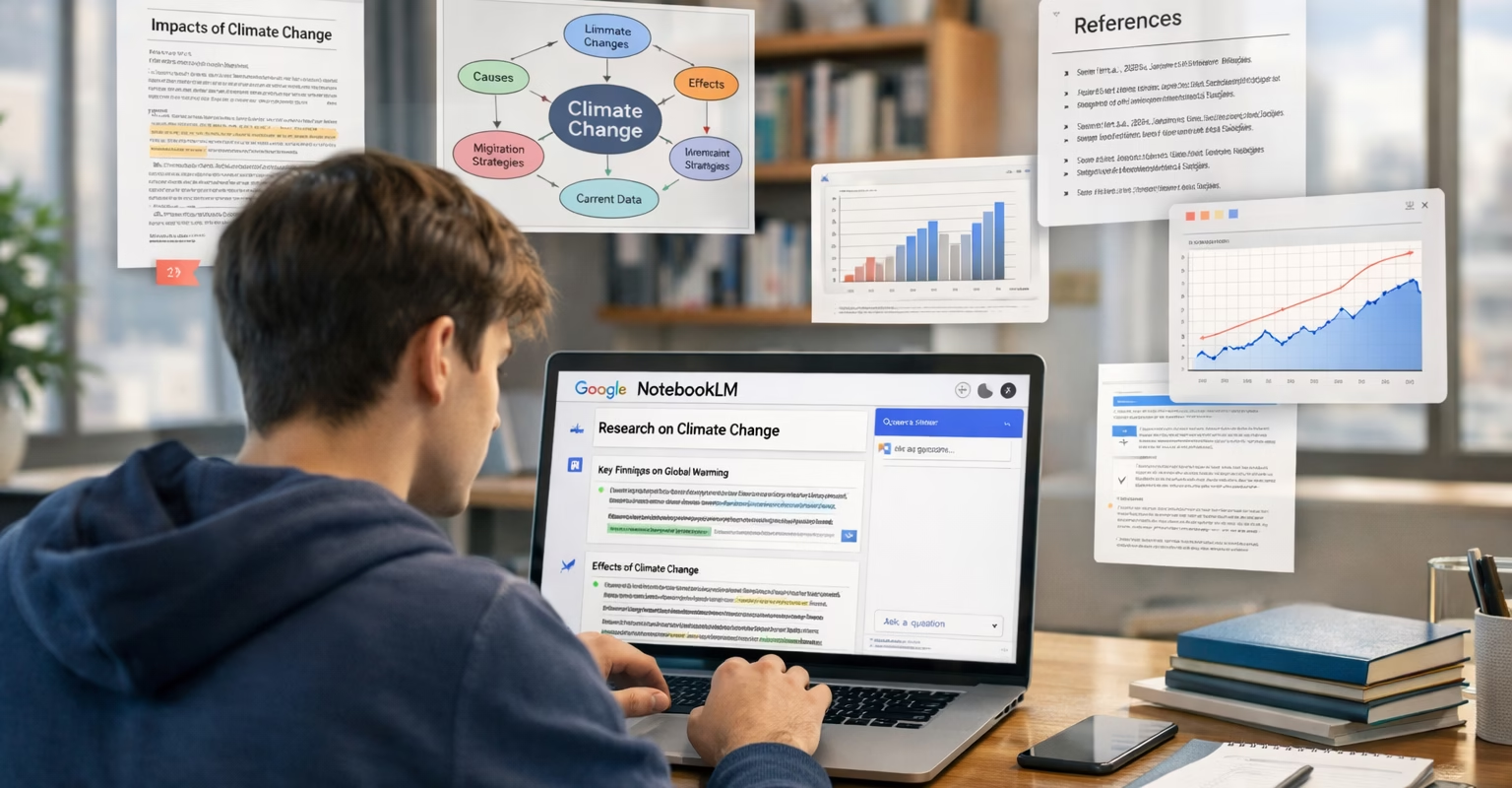
NotebookLM is Google’s AI research tool. It helps you study and write papers. You give it your documents. It reads them for you. It only uses what you give it. It does not search the web. This stops wrong information. For a broader look at AI tools, see our guide to the best AI writing tools in 2026.
In 2026, NotebookLM is better. It uses Gemini 3. This means it thinks better. You can add more files now. Free users get 50 files per project. Paid users get 300+ files. It is faster too.
Why Use NotebookLM?
-
No fake facts – It only uses your uploaded files
-
Handles many file types – PDFs, videos, web links, audio
-
Saves time – It reads and summarizes for you
-
Helps organize – Keeps all research in one place
-
Good for students – Makes study guides and flashcards
For students in Lahore, this is very useful. Use it for your thesis. Use it for reports. It works well on phones too.
Step 1: Set Up Your Notebook
-
Go to notebooklm.google.com
-
Sign in with Google
-
Click “New Notebook”
-
Give it a clear name
-
Example: “My Thesis 2026” or “Climate Change Pakistan”
-
-
Click Create
Tip: Make separate notebooks for each big project. Do not mix everything together.
Step 2: Add Your Sources
Add your research files. You can add:
-
PDF files – Academic papers, book chapters
-
Google Drive files – Docs, Slides, Sheets
-
Web links – News articles, journal pages
-
YouTube videos – Lectures, tutorials
-
Audio files – Recorded interviews, lectures

How to add files:
-
Click “Add Source”
-
Choose your file type
-
Select your file or paste link
-
Wait for upload
Tip for Pakistani students: Add local sources. Add Dawn newspaper articles. Add Pakistan study reports. For more specialized academic tools, explore our list of best free AI tools for academic research in 2026.
Step 3: Use Deep Research Mode
Deep Research is the best feature. It reads all your files. It writes a report for you.
How to use it well:
-
Click “Deep Research”
-
Ask a good question
-
Bad: “Tell me about my files”
-
Good: “Find three main arguments in my 10 papers about water in Punjab”
-
-
Click Generate
It will make a report. The report has citations. Citations show which file the information came from.
Use Deep Research for:
-
Finding gaps in your research
-
Comparing different viewpoints
-
Getting summaries of many files

Step 4: Use Study Tools
NotebookLM makes study aids for you.
Audio Overview
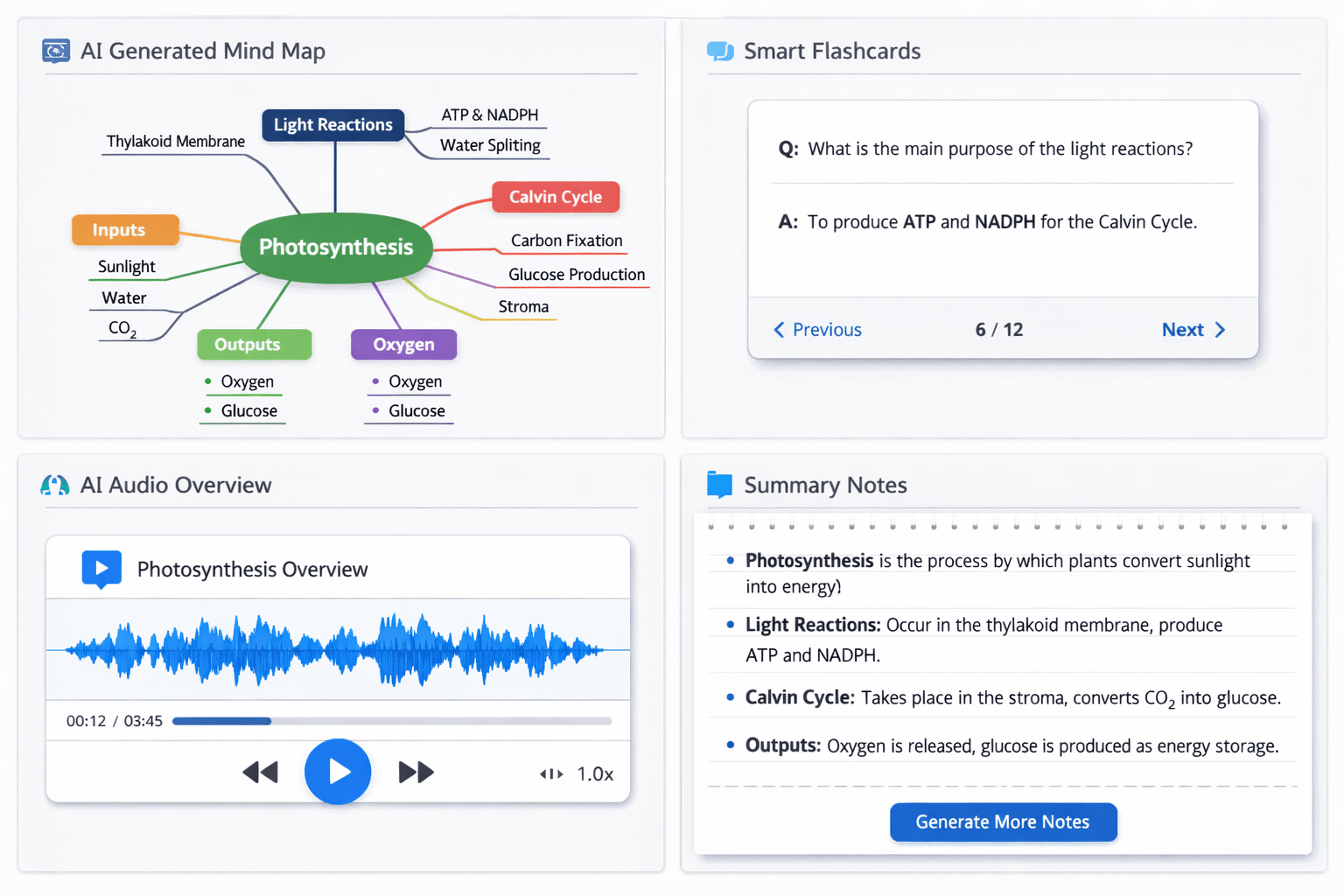
It makes a podcast from your files. Two AI voices discuss your research. Listen while traveling. Listen while exercising.
How to make it:
-
Click “Audio Overview”
-
Click “Create”
-
Wait a few minutes
-
Press play
Mind Maps
It makes a visual map. The map shows how ideas connect.
How to make it:
-
Click “Mind Map”
-
Choose a topic from your files
-
Click “Generate”
Study Aids
It makes flashcards and quizzes.
How to make them:
-
Click “Study Guide”
-
Choose what to make
-
Click “Create”
Step 5: Write Your Paper
Use NotebookLM to help write.
Save Good Answers
When NotebookLM gives a good answer:
-
Click “Save to Note”
-
It saves to your notebook
-
You can find all saved notes later
Check Your Writing
Upload your draft. Ask NotebookLM:
“Read my draft and my sources. What did I miss?”
It will tell you what to add. It will tell you what needs more proof.
Get Citations
Every answer shows little gray bubbles. These are citations. Click a bubble. You will see the exact text in your PDF file.
This helps you write references. This stops plagiarism. For polishing your final draft, compare QuillBot vs Grammarly GO 2026 for editing assistance.

NotebookLM vs Other Tools
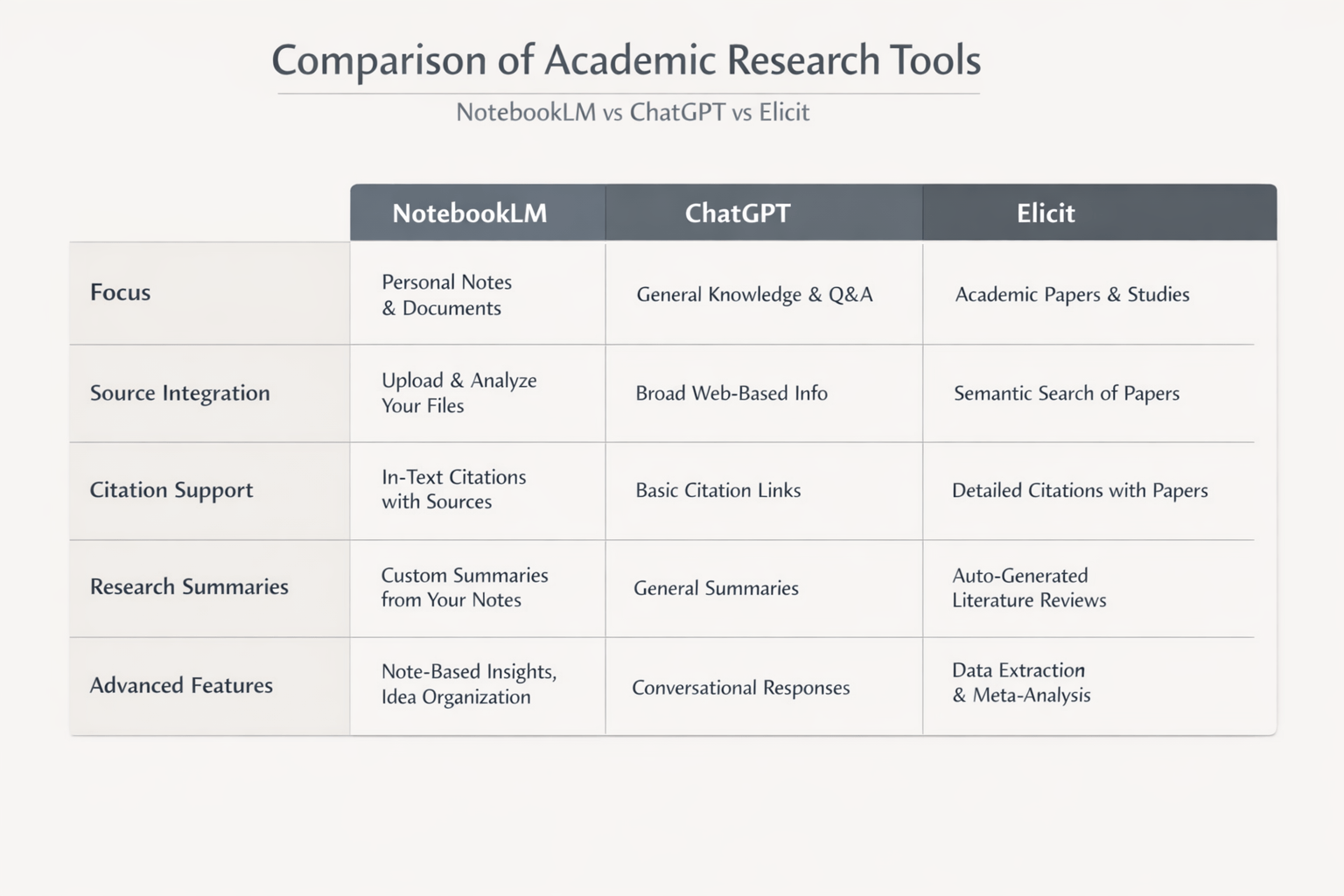
| Feature | NotebookLM | ChatGPT | Elicit |
|---|---|---|---|
| Uses only your sources | Yes | No | Yes |
| File upload limit | 50 free / 300+ paid | Limited | Database |
| Audio summaries | Yes | No | No |
| Best for | Your own documents | General questions | Finding papers |
| Cost 2026 | Free / Paid | $20/month | Free / Paid |
| Wrong facts risk | Very low | Medium | Low |
NotebookLM is best for: Thesis writing. Research with your own files. Accurate citations.
ChatGPT is best for: General questions. Brainstorming ideas. Learn more about how it compares in our Claude vs ChatGPT vs Gemini 2026 analysis.
Elicit is best for: Finding new research papers.
Privacy and Safety
Your files are private. Google does not use them to train AI. Your research stays yours.
Safety tips:
-
Do not upload secret information
-
Export your notes often
-
Use strong passwords
-
Check your university’s AI rules
Quick Tips for Success
-
Start small – Use 5-10 good files first
-
Name files clearly – “Pakistan_water_study_2024.pdf”
-
Ask specific questions – Better questions get better answers
-
Use citations – Always click the gray bubbles
-
Tell your professor – Be honest about using AI help
Common Questions
Is NotebookLM free?
Yes, basic features are free. You get 50 files per notebook. Paid plans give more files and faster help.
Does it work with Urdu?
It works best with English. For Urdu PDFs, it reads the text if the PDF has text. Scanned Urdu images may not work well.
Can I use it offline?
No. You need internet. But you can export your notes and use them offline.
Is it good for group projects?
Yes. You can share notebooks with team members.
How is it different from Gemini?
NotebookLM focuses on your files. Gemini is a general AI chatbot. NotebookLM is better for research.
Final Advice
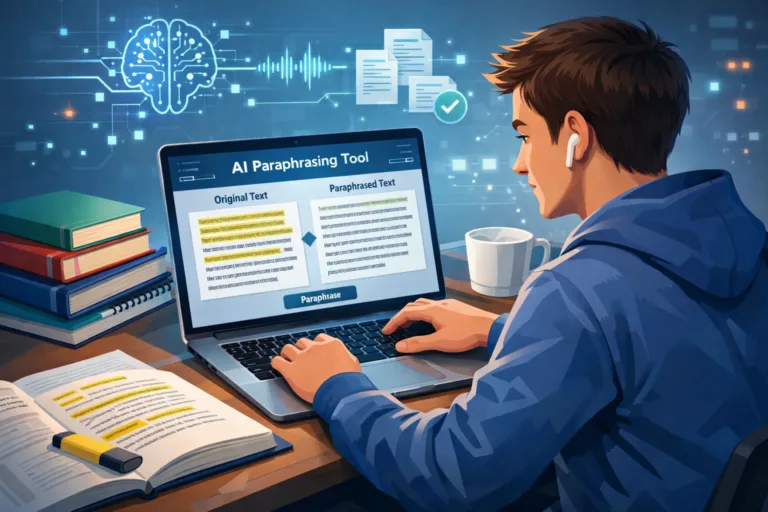
Start using NotebookLM today. It makes research easier. It saves you time. It keeps your facts correct. If you need help rewording content, check out the best AI paraphrasing tools for assistance.
Remember: NotebookLM is a tool. It helps you think. It does not think for you. Always check its work. Always add your own ideas.
Good luck with your research in 2026!



Leave a Comment
Your email address will not be published. Required fields are marked *
No Comments Yet
Be the first to share your thoughts!